
OddsLogic Arb Alerts:Find Arbitrage Opportunities in Real Time
OddsLogic Arb Alerts:
Find Arbitrage Opportunities in Real Time
Find pricing differences across sportsbooks as they happen
Find pricing differences across sportsbooks as they happen
Arb Alerts monitor sportsbook odds for opportunities where pricing differences across the market create an arbitrage.
OddsLogic continuously monitors the sportsbooks, leagues, markets, and game segments you select. When an opportunity meets your criteria, an alert is generated with the sportsbooks, odds, calculated arb percentage, and suggested wager amounts.
You control which opportunities you want to see, from the minimum arb percentage to the sportsbooks and markets OddsLogic monitors.
Setting Up Arb Alerts
Setting Up Arb Alerts
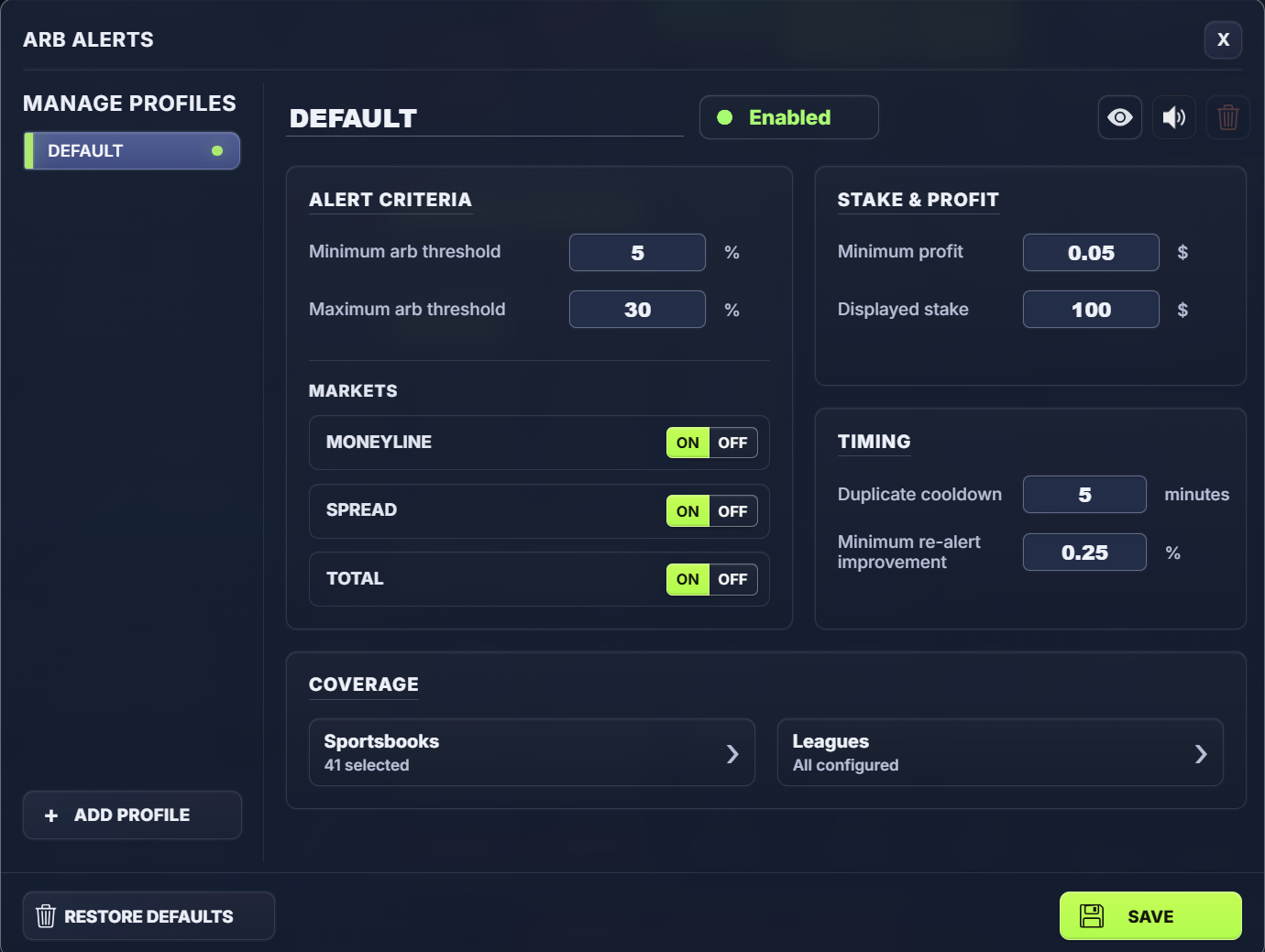
Open Settings → Arb Alerts. Your Default profile is the starting point for your alerts.
1. Set Your Alert Criteria
1. Set Your Alert Criteria
Use Minimum Arb Threshold and Maximum Arb Threshold to define the range of arbitrage opportunities you want OddsLogic to alert you to.
For example, setting a minimum of 2% tells OddsLogic not to alert you to opportunities below 2%.
The Maximum Arb Threshold can be used to filter unusually large calculated opportunities that you don't want included in your alerts.
TIP: Set a Realistic Range
Larger isn't always better. Extremely high arb percentages can sometimes result from unusual market conditions or odds that may change quickly. Setting a reasonable minimum and maximum helps keep your alerts focused on opportunities you actually want to evaluate.
2. Choose Your Markets
2. Choose Your Markets
Select which market types OddsLogic should monitor for arbitrage opportunities:
- Moneyline
- Spread
- Total
Turn off any markets you don't want included in this profile.
3. Set Your Stake & Profit
3. Set Your Stake & Profit
Use Stake & Profit to control how OddsLogic calculates and displays opportunities.
Minimum Profit sets the minimum calculated dollar profit required for an alert.
Displayed Stake determines the total stake OddsLogic uses when displaying the suggested wager amounts.
For example, with a $200 Displayed Stake, an alert can show how that $200 would be divided between the opposing wagers based on the available prices.
TIP: Displayed Stake Doesn't Place a Bet
This setting is used to calculate and display suggested wager amounts. OddsLogic does not automatically place the wagers.
4. Control Repeat Alerts
4. Control Repeat Alerts
Arbitrage opportunities can change quickly as sportsbooks update their odds. The Timing settings help prevent repeated notifications for essentially the same opportunity.
Duplicate Cooldown determines how long OddsLogic waits before alerting you again to the same opportunity.
Minimum Re-Alert Improvement requires the arb percentage to improve by a specified amount before another alert is generated.
For example, if you set the Minimum Re-Alert Improvement to 0.25%, the opportunity must improve by at least that amount to qualify for another alert, subject to your other alert settings.
5. Choose Your Sportsbooks
5. Choose Your Sportsbooks
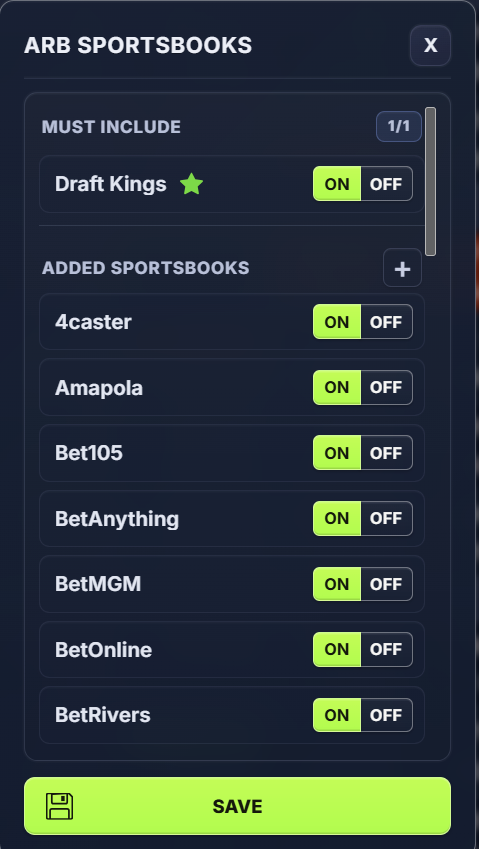
Open Sportsbooks under Coverage and select the books you want OddsLogic to use when searching for arbitrage opportunities.
For Arb Alerts, you generally want to select the sportsbooks you actually have access to and are willing to wager with. The more usable sportsbooks you monitor, the more combinations OddsLogic can evaluate for potential opportunities.
Must Include Sportsbook
You can designate one sportsbook as Must Include. When selected, OddsLogic will only alert you to arbitrage opportunities where that sportsbook is one side of the arb.
For example, if DraftKings is your Must Include sportsbook, an arb between DraftKings and FanDuel could trigger an alert, while an arb between FanDuel and BetMGM would not.
This is useful when you have a particular sportsbook where you want to focus your action or balance.
How to Set a Must Include Sportsbook
How to Set a Must Include Sportsbook
To designate a sportsbook as Must Include, move your mouse over the sportsbook and click the star icon that appears next to the book name.
Once selected, that sportsbook will move into the Must Include section and must be one side of the arbitrage opportunity for an alert to trigger.
To remove a sportsbook from Must Include, click the star again to deselect it. The sportsbook will return to your regular Added Sportsbooks list.
TIP: Arb Alerts allow only one Must Include sportsbook. Use this option only when you want every arbitrage opportunity to involve a specific book.
6. Choose Your Leagues, Markets & Segments
6. Choose Your Leagues, Markets & Segments
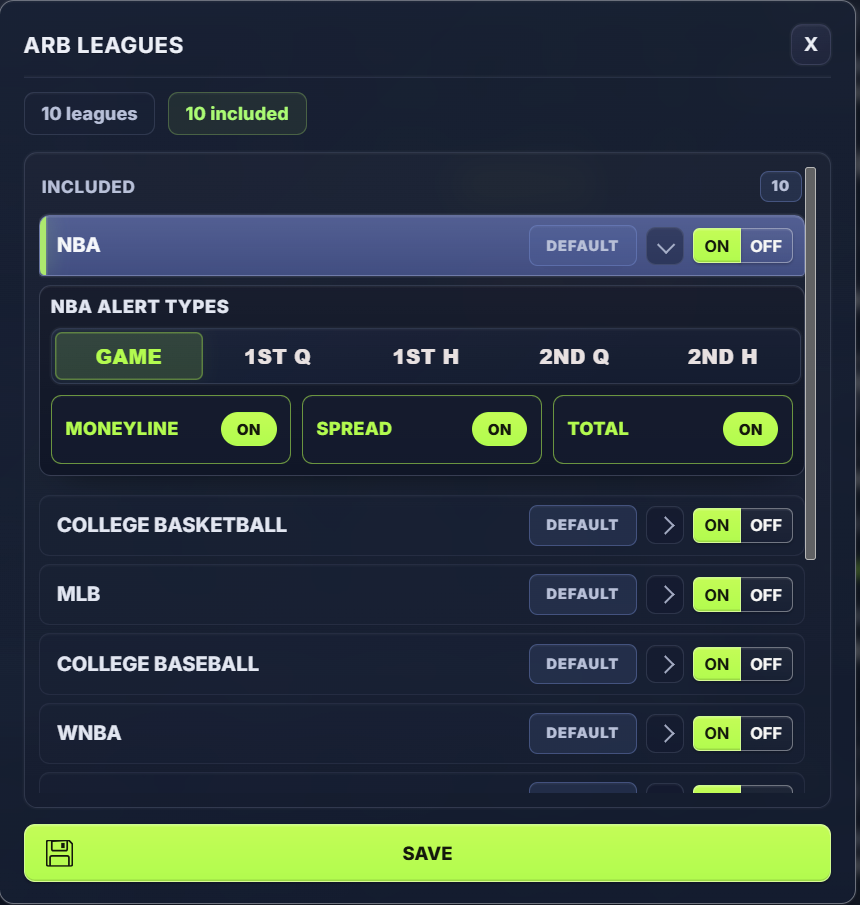
Open Leagues to select the leagues you want monitored.
Just like Sharp Plays, you can include a league and then customize the individual markets and game segments monitored within that league.
This gives you broad or highly specific coverage. For example, one profile could monitor all available NFL markets while another could focus on selected NBA markets and game segments.
Advanced: Create Multiple Arb Profiles
Advanced: Create Multiple Arb Profiles
Profiles allow you to maintain multiple Arbitrage Alert configurations at the same time.
Each profile can have its own:
- Arb thresholds
- Markets
- Stake and profit settings
- Timing settings
- Sportsbooks
- Leagues, markets, and segments
For example, you might create a dedicated NBA Arb profile with different thresholds or sportsbooks than your Default profile.
If NBA is handled by the new profile, turn NBA ON there and OFF in the Default profile to prevent both profiles from monitoring the same opportunities unnecessarily.
When an Arbitrage Opportunity Is Triggered
When an Arbitrage Opportunity Is Triggered
When an opportunity meets the criteria for one of your enabled profiles, OddsLogic displays an Arb Alert popup directly on the odds screen.
The alert provides the key information needed to evaluate the opportunity, including the available odds at each sportsbook, the calculated arb percentage, and wager amounts based on your Displayed Stake.
Review Your Arb Alerts
Review Your Arb Alerts
You don't have to catch every alert popup when it appears.
Click the Arb Alerts icon in the OddsLogic toolbar to view your Arb Alerts and review the opportunities that have been generated.
TIP: Start With a Simple Setup
For your first profile, select the sportsbooks you actually use, choose the leagues and markets you bet, and establish a reasonable arb range. Once you see the opportunities OddsLogic identifies, use additional profiles, league-level settings, and timing controls to fine-tune your alerts.