
Customize What You See With OddsLogic Columns
Customize What You See With OddsLogic Columns
Build the OddsLogic screen around the way you follow the market
Build the OddsLogic screen around the way you follow the market
Columns control the information displayed across your OddsLogic screen. Choose the sportsbooks and data you want to see, remove what you don't need, and arrange everything in the order that works best for you.
You can also create multiple Column Profiles and assign them to specific Views, allowing your screen layout to automatically change depending on what you're viewing.
Setting Up Your Columns
Setting Up Your Columns
Open Settings → Columns. Your Default profile is the starting point for your column layout.
1. Add & Remove Columns
1. Add & Remove Columns
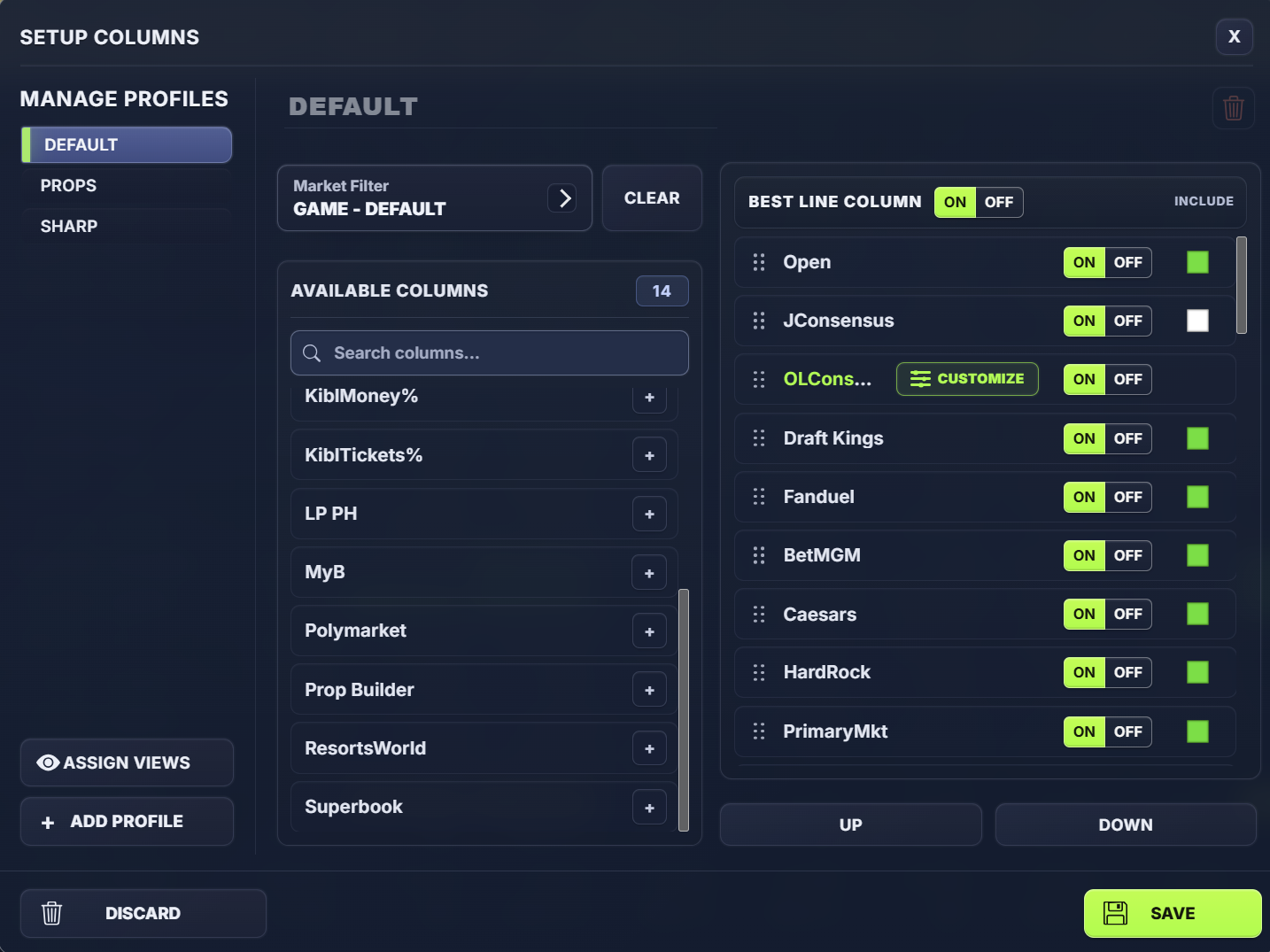
The Available Columns section displays columns that can be added to your screen, including sportsbooks and other available OddsLogic data.
Click the + next to a column to add it to your setup.
For columns already in your setup, use the ON/OFF control to determine whether the column is displayed.
This lets you build anything from a streamlined screen with a handful of key sportsbooks to a broader market view with many different data sources.
TIP: Build Around How You Actually Bet
More columns aren't necessarily better. Start with the sportsbooks and market information you use most often, then add additional columns when they provide something useful to your workflow.
2. Arrange Your Columns
2. Arrange Your Columns
The order shown in Column Setup determines how the columns are arranged on your OddsLogic screen.
Select a column and use Up or Down to change its position.
Put the information you use most frequently where it's easiest to see, for example, keeping your primary sportsbooks, consensus data, and Best Line information together.
3. Set Up the Best Line Column
3. Set Up the Best Line Column
Turn Best Line Column ON to display OddsLogic's Best Line directly on your screen.
You also control which columns are allowed to contribute to Best Line.
Use the Include checkbox next to each column to include or exclude that source from the Best Line calculation.
For example, you may want a sportsbook displayed on your screen for reference but not want its prices considered when OddsLogic determines the Best Line.
TIP: Best Line Is Your List
Don't automatically include every displayed sportsbook. Include the books whose prices you actually want considered when identifying the best available number.
4. Create a Custom Consensus
4. Create a Custom Consensus
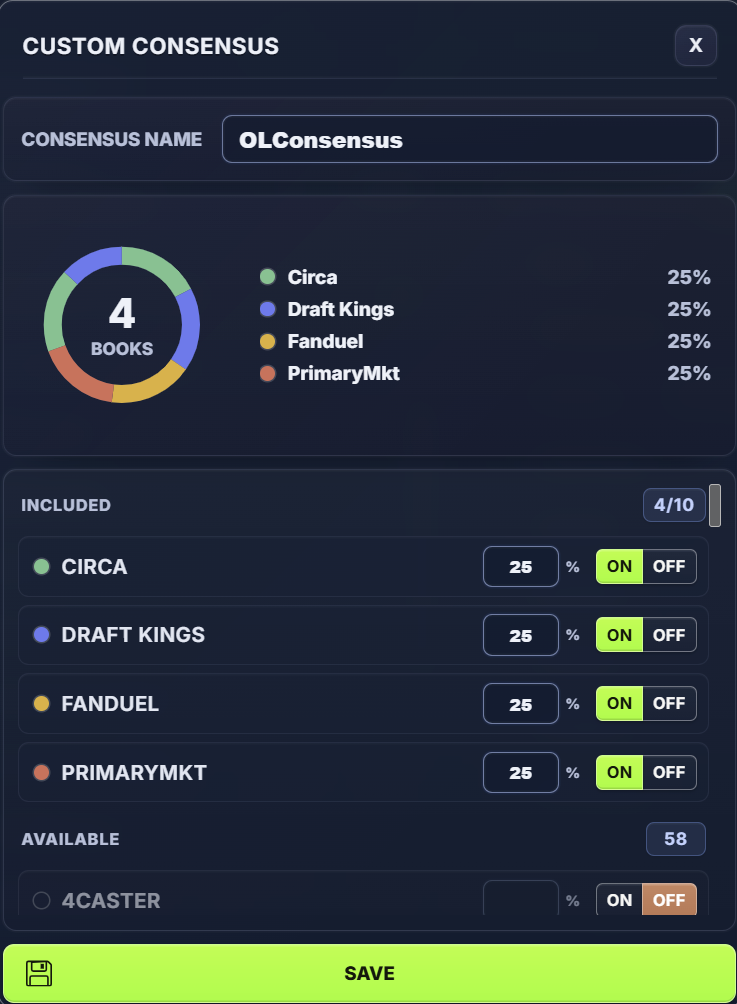
Custom Consensus lets you build your own market consensus using a group of sportsbooks that you select.
Choose Customize on a consensus column to open the Custom Consensus setup.
From there you can:
- Select the sportsbooks included in the consensus
- Name your Custom Consensus
- Assign a percentage weight to each sportsbook
- Include or remove sportsbooks at any time
For example, you could create a consensus using four sportsbooks and give each one a 25% weighting, or give greater weight to the sportsbooks whose numbers you consider more meaningful.
Your Custom Consensus then appears as its own column on the OddsLogic screen.
TIP: Build Consensus Around the Market You Follow
Custom Consensus isn't limited to an equal average of every sportsbook. Select the books you trust as market indicators and use weighting to control how much influence each one has on your consensus.
Advanced: Create Multiple Column Profiles
Advanced: Create Multiple Column Profiles
You don't have to use the same column layout for everything you follow.
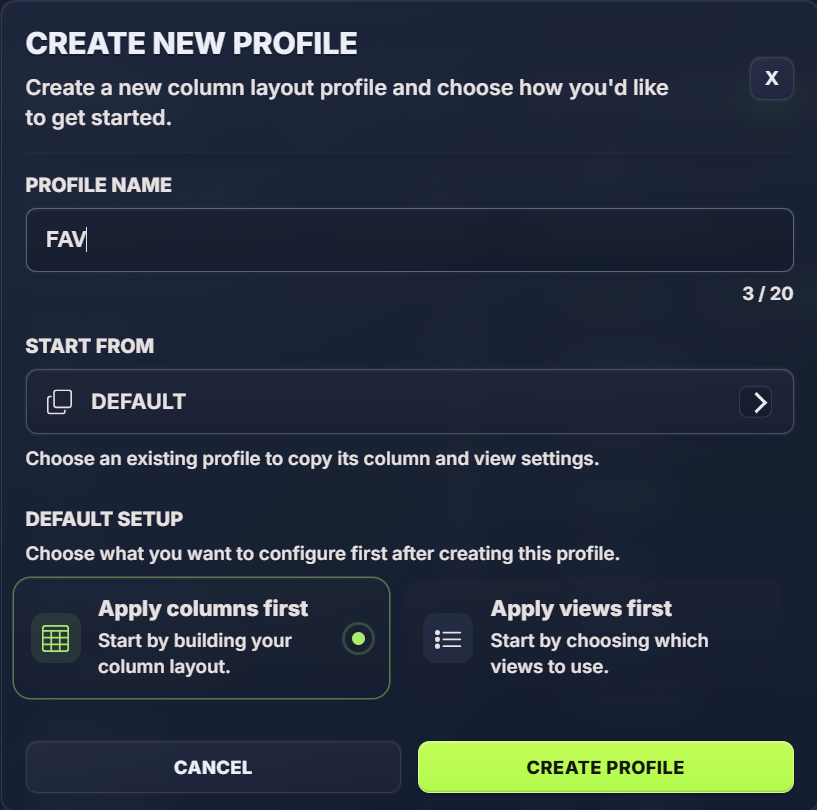
Click Add Profile to create another Column Profile. Give it a name and choose an existing profile as your starting point.
You can then customize the new profile independently.
For example, you might create:
Football - your preferred football books and market indicators
NBA - a different group of sportsbooks and consensus setup
Props - columns specifically useful for prop betting
Sharp - a focused layout built around the books you use to track market movement
Each profile can have its own columns, column order, Best Line selections, and Custom Consensus configuration.
TIP: Copy, Then Customize
When creating a new profile, starting from an existing setup can save time. Copy the profile that's closest to what you want and then make only the changes needed for the new layout.
Assign Column Profiles to Views
Assign Column Profiles to Views
This is where Column Profiles become especially powerful.
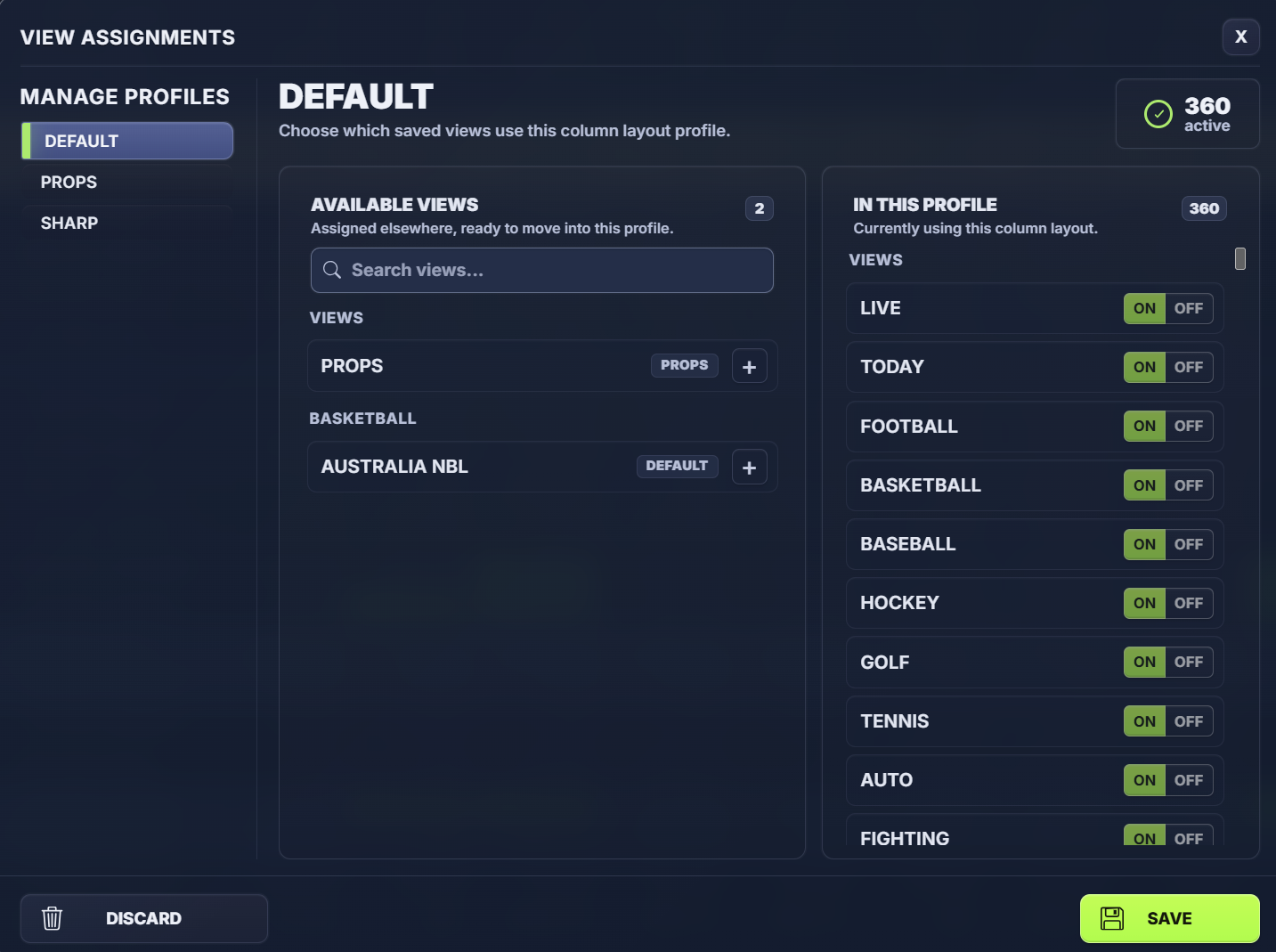
Click Assign Views to choose which OddsLogic Views use the selected Column Profile.
For example:
Football View → Football Column Profile
Basketball View → NBA Column Profile
Props View → Props Column Profile
Once assigned, opening that View uses its assigned column layout.
This means you don't have to manually add, remove, and rearrange columns every time you move between different betting workflows.
TIP: Views Control the Games. Column Profiles Control the Data.
Use Views to organize the events you want to follow, then assign Column Profiles to control the sportsbooks and information displayed for those events. Together, they let you create dedicated betting workspaces for different sports and strategies.
A Simple Starting Point
A Simple Starting Point
If you're setting up Columns for the first time, start with your Default profile.
Add the sportsbooks you regularly use, arrange them in a useful order, turn on Best Line, and choose which books should contribute to it.
Once you're comfortable with your main screen, create additional Column Profiles for situations where you want a different layout and assign those profiles to the appropriate Views.
The goal isn't to fit everything onto one screen—it's to have the right information on the screen when you need it.